 Helpcentre
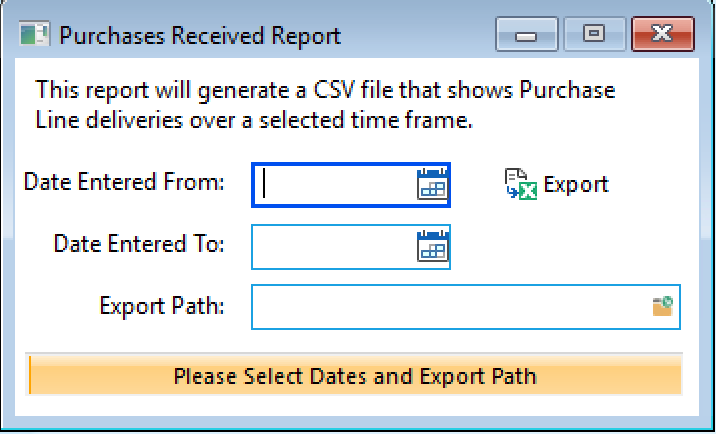
Use the Purchases Received Report window to export recorded purchase-order line deliveries to a CSV file. The selected dates filter purchase orders by their entered/order date; the export then includes every recorded delivery line on the matching orders.
Before you start
- Choose or create a folder where you can save the CSV file.
- Decide the purchase-order entered-date range you need. The function filters purchase orders by their Order Date (the purchase order entered date), not by each delivery's received date.
- Ensure you have access to the function.
Create the export
- On the PURCHASING or REPORTS tab, click Purchase Delivery Report. The Purchases Received Report window opens.
- In Date Entered From, enter the first purchase-order entered date to include. You can use the date-picker option beside the field.
- In Date Entered To, enter the last purchase-order entered date to include.
- In Export Path, use the browse option to select the folder where the CSV file will be saved.
- Select Export.
- Wait for the status bar to display Complete, then acknowledge the confirmation message.
Opto saves the file in the selected folder as Purchase_DIFOT_Data_<from>_to_<to>.csv, replacing slashes in the entered dates with underscores.
What the CSV contains
The first row contains these headings:
- Supplier Code
- Supplier Name
- Purchase Order Number
- Line Item Id
- Line Item Description
- Line Item QTY Ordered
- Line Item QTY Received
- Line Item Date Due
- Line Item Date Received
- Purchase Order Entered Date
The function writes a row for every recorded delivery on each matching purchase-order line. It formats identifiers and numeric values for CSV export so spreadsheet software is less likely to change them automatically.
If no file is created
| Message or symptom | What to check |
|---|---|
| Please Enter a Date From | Enter a start date before selecting Export. |
| Please Enter a Date To | Enter an end date before selecting Export. |
| Please Enter a Directory | Select an export folder before selecting Export. |
| No Records found to print... | Check the entered dates and confirm that purchase orders exist with order dates in the requested range. |
| No Purchases Found | Check that matching purchase orders contain recorded delivery values. |
Opto SoftwareRevised: 07/07/23