 Helpcentre
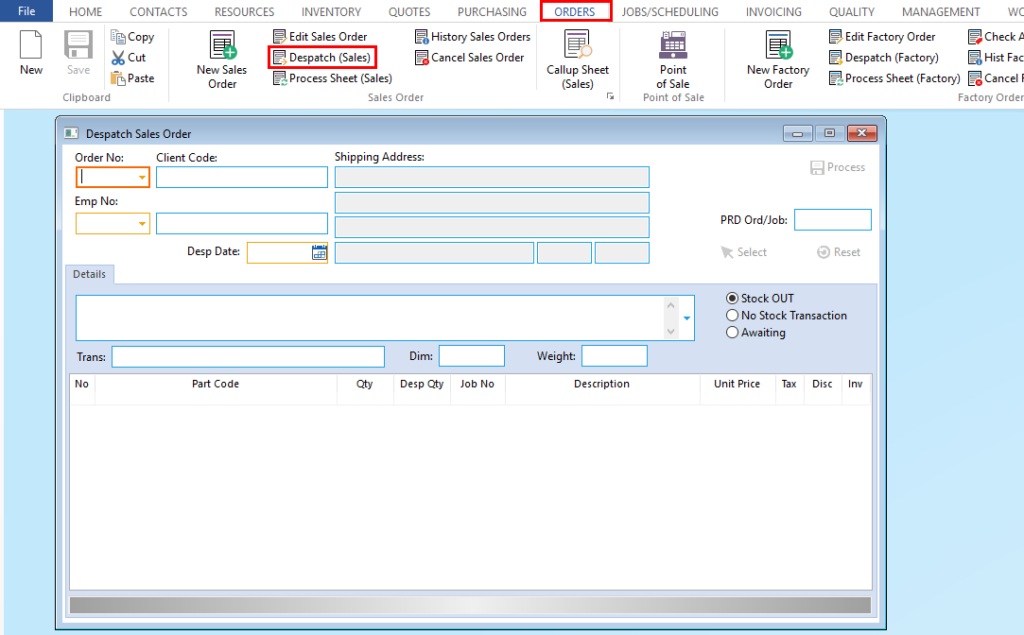
- From the OPTO ribbon, select the ‘Orders’ tab and click on the ‘Despatch (Sales)' icon to open the Despatch Sales Order window. Press <F2> and select the Sales Order from the pop-up list and click OK, press <TAB> to activate the window.
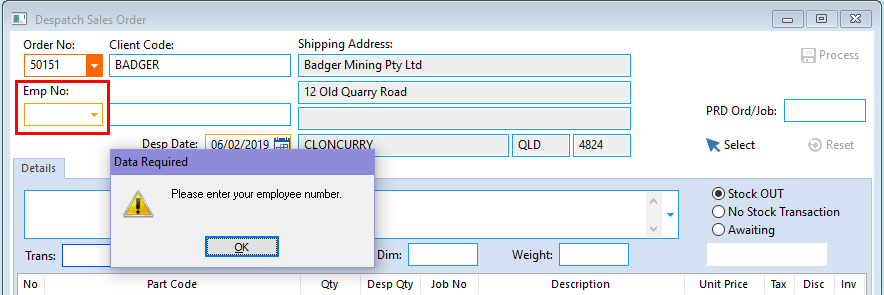
- A message appears to prompt the user to enter their employee number, click OK. In the Emp No. field, press <F2> and select the name of the employee who is despatching the client order from pop-up list and click on OK.
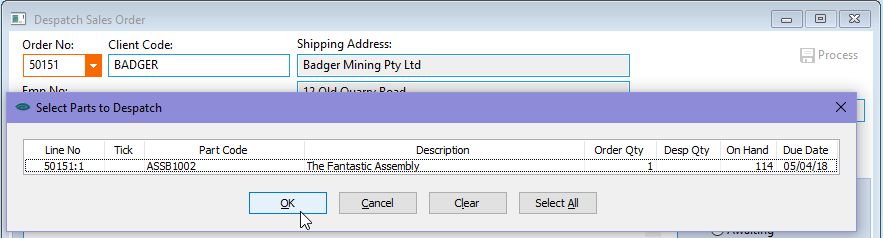
- Press <TAB> again to bring up the ‘Select Parts to Despatch’ window and click on the parts to be despatched and click OK.
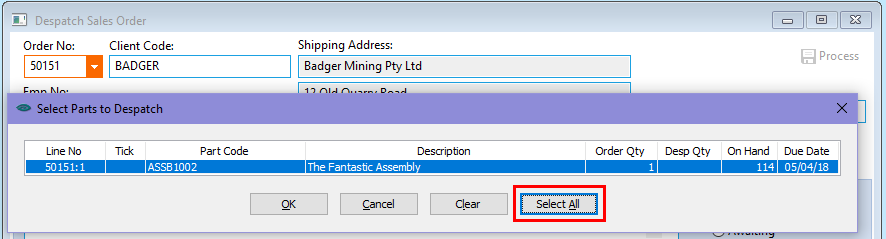
- Select the parts individually or select all. Check the quantities and click OK.
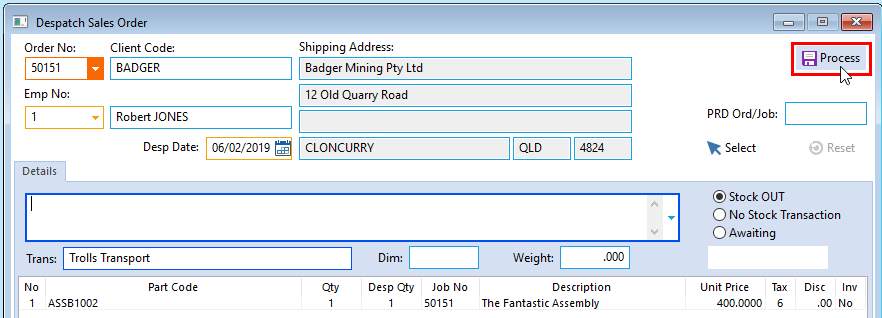
- Select the ‘Process’ icon in the top right corner of the screen to save the despatch order (circled below).
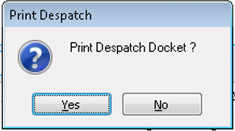
- A prompt window will appear asking you to ‘Print Despatch Docket’, click yes or no to proceed.
Opto Software Pty LtdRevised 03/08/2018