 Helpcentre
Use Update Supplier Pricing to export the current material and part supplier-pricing data for one supplier, edit it in the supplied template format, and import it back into Opto. Importing changes existing records and can add a supplier entry where one does not already exist, so work from a copy and check the file before processing it.
Before you start
- Confirm the supplier code and the pricing changes with the person responsible for purchasing.
- Make a backup copy of the exported template before editing it.
- Use a spreadsheet application that can save a tab-delimited
.txtfile without changing the header row or column order. - Ensure the supplier codes in the file exist in Opto. Rows with an unknown supplier code are skipped.
Open the function
- On the CONTACTS tab, click Update Supplier Pricing.
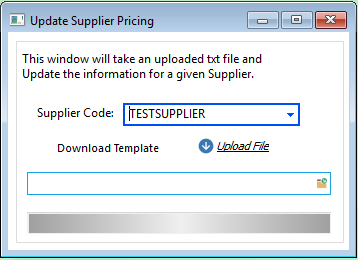
- In Supplier Code, enter or select the supplier whose current pricing you want to export.
Download the template
- Select Download Template.
- If Opto asks whether to apply pricing by division, choose the appropriate option. If you choose division pricing, select the division to export.
- Save the generated spreadsheet.
Opto generates rows for materials and parts associated with the selected supplier. For materials, the export uses either non-division pricing or the division selected in the prompt. If no matching items are found, Opto displays No Items Found For This Supplier.
Edit the file
Keep the first row exactly as generated. The importer validates every header and stops if a required header is missing or changed.
The template contains these columns, in this order:
- Material Code (Not Editable)
- Supplier
- Supplier Code
- Supplier Description
- Supplier Quote Number
- Supplier Quote Date
- Supplier Quantity
- UOM1 Unit (Not Editable)
- UOM2 Unit (Not Editable)
- UOM1 Price
- UOM2 Price
- Conversion Factor (UOM2 / UOM1)
- Length (mm)
- Width (mm)
- Weight (kg)
- Surface Area
- Thickness (mm)
- Lead Time (Days)
- Sell Price
- Preferred (Yes/No)
- Part/Material
The headings above reflect the updated template. Use Preferred (Yes/No) to specify whether this supplier is preferred.
Enter numbers only in numeric fields. Leave a field blank when you do not want the importer to update that value. Do not alter the material code, UOM columns, Part/Material indicator, or the header row.
For material rows, Opto can derive a missing unit price when enough information is supplied:
- If UOM1 Price is blank, Opto calculates it from UOM2 Price ÷ Conversion Factor when both values are numeric and the conversion factor is not zero.
- If UOM2 Price is blank, Opto calculates it from UOM1 Price × Conversion Factor when both values are numeric.
Setting Preferred (Yes/No) to Yes for a material supplier clears the preferred flag for the other non-division suppliers on that material. For parts, setting it to Yes clears the preferred flag for the other suppliers on that part. Review this column carefully before import.
Save the completed file as a tab-delimited .txt file.
Import the completed file
- Return to Update Supplier Pricing.
- Use the browse option beside the file path to select the
.txtfile. - Select Upload File.
- Confirm that the file uses the downloaded template format and is tab delimited.
- Confirm the import when prompted.
- Wait for the status bar to show Update Complete.
If the system is configured for warehouse divisions, Opto again asks whether to apply pricing by division. Choose the same pricing context you used when exporting; if you choose division pricing, select the intended division.
Check the result
Open a small sample of the affected material and part records and confirm the supplier code, supplier item code and description, prices, quote details, lead time and preferred-supplier setting. Check division-specific pricing separately when it was included.
Troubleshooting
| Message or symptom | What to check |
|---|---|
| NO FILE ENTERED | Select a file path before choosing Upload File. |
| FILE NOT FOUND | Confirm the file still exists at the selected path and that you can read it. |
| Column '<name>' Not Found | Start again from a newly downloaded template; do not rename, remove, reorder or edit its header row. |
| No visible change for a numeric value | Confirm it is numeric. Blank or non-numeric numeric fields are not written. |
| Supplier changes did not import | Confirm the supplier code in that row exists in Opto. |
Related articles
No closely related Helpcentre article was found during the staged duplicate search.