
Overview:
This procedure will be the same for exporting suppliers, follow the same instructions except the user will be working in the Export Suppliers from MYOB window. Note: Ensure there are no extra spaces in, before or after the Export Name when it is created or any special characters (& ‘ “ @ $ ! % ^) as this will cause an error when export invoices. PLEASE NOTE: For this example, we will use the Clients.
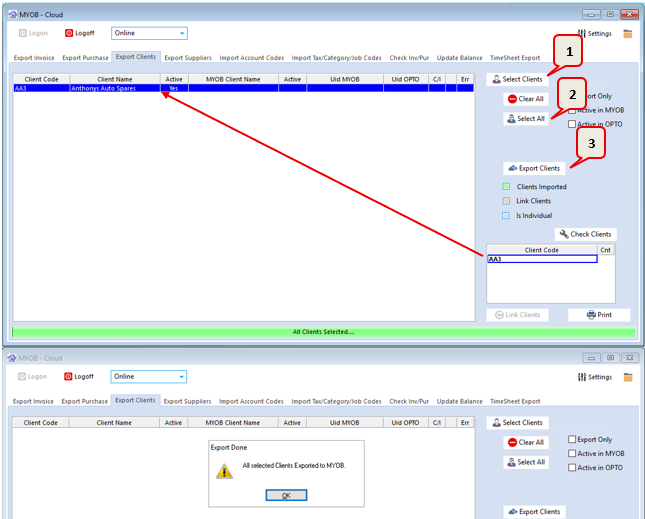
Export Clients to MYOB – Open the INVOICING tab and click on Export-MYOB icon to open the MYOB – Cloud Window. Click on ‘Export Clients’ tab and then click on the Select Clients icon.
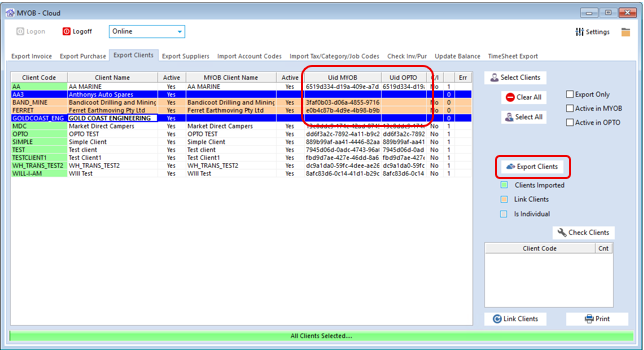
If the client/supplier doesn’t exist or it can’t be found in MYOB there will be no UIDs for either OPTO or MYOB – See blue highlighted clients below. These clients/suppliers will need to be exported to MYOB, click on the lines to highlight and then select the Export Clients icon.
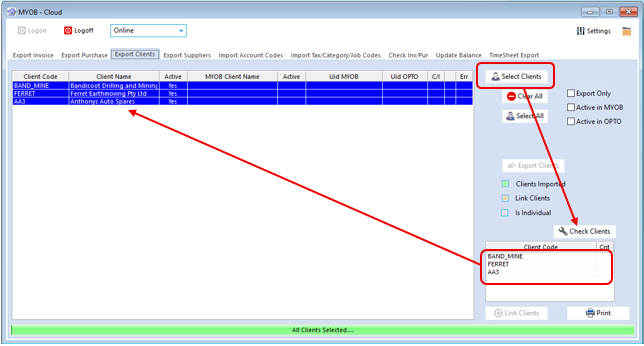
The Client/Supplier Code will appear in the area circled in the screen shot below. Click on the Select Client/Supplier icon and they will appear in the top panel to be exported. Click on the Check Clients icon to find the UIDs for the previously exported client/supplier.
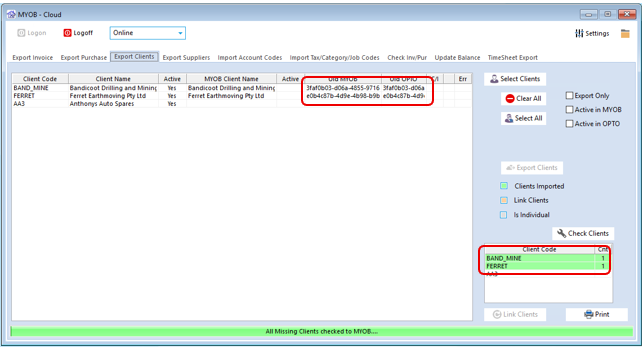
For this example, 2 of the clients were found in MYOB so they now have the matching UIDs. The 3rd client doesn’t exist in MYOB so they need to be exported
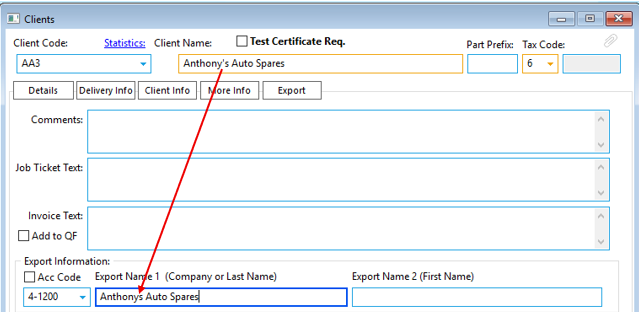
You may notice that the apostrophe in the Client Name has been removed from the Export Name as noted in the overview at the top of this document.
Export the remaining client to MYOB – Just like before the client code will appear in the bottom area. Click on Select Clients (1) icon and then Select All (2) icon to activate the Export Clients (3) icon which will be greyed out initially. Click on the Export Clients (3) icon and the client is export to MYOB.
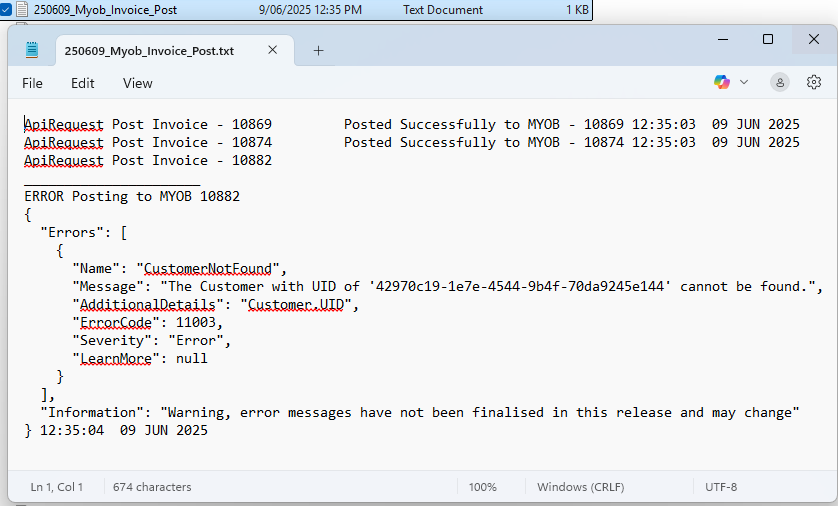
To Link Clients/Suppliers to MYOB – When you load the invoices or purchases to be exported and the number is red then that means MYOB can’t find the Client/Supplier. If the Client/Supplier does exist in MYOB and OPTO – The first step is to check if the export name in MYOB exactly matches the Export name in OPTO. (The export names are located on the Client or Supplier Info tab in OPTO). If an error message appears after the export is run, you will find a Myob_Invoice_Post.txt file in the OPTO\AppData\EXPORT folder where the OPTO folder is located on your network. See example below, the client UID cannot be found. If the log refers to UID issues then you will have to contact OPTO Support for assistance.
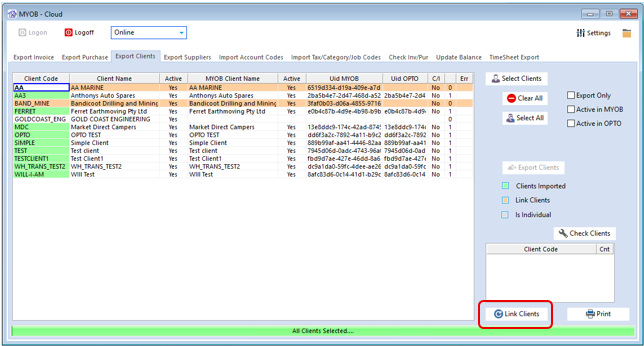
When there are no UID errors and the export name in OPTO matches the card name in MYOB – Go to the Export Clients tab and click on the Select Client or Suppliers icon to load the whole list. Once the window loads with all the names, scroll to find the code/names. If the entry is highlighted orange, then click on the Link Client or Supplier icon.
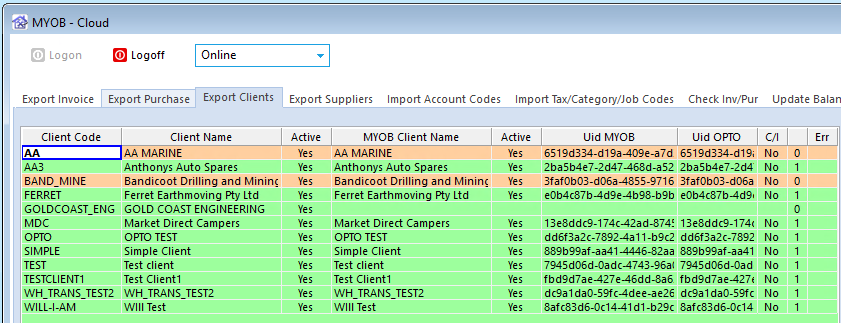
All the window turns green and the highlighted orange code/names will now have matching UIDs.
Opto Software Pty Ltd
Revised: 09/06/2025


