
Overview:
This process will enable the user to add a delivery charge directly to an invoice rather than the order. It is particularly useful when freight is not included on a Factory or Sales order that has already been despatched. Note: Ensure that the export codes are already in MYOB, Xero or QuickBooks to enable successful exporting.
Create a dummy material or part code for freight charges, if one has not already been created. The code created for use for the ‘Freight’ account may also be used for this code.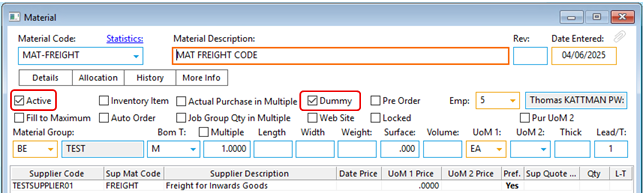
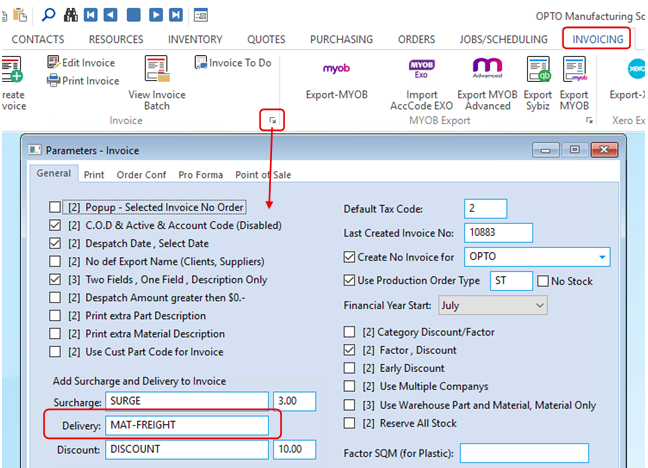
Click on the INVOICING tab of the OPTO Ribbon and select the Invoicing Parameters icon. Enter the Part/Material code for Freight and press F9 to save.
In the Invoice window, select the Delivery icon, a message pops-up (See below), click on Yes. You will then be prompted to save changes to the invoice, click on Yes again.

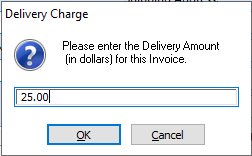
The ‘Delivery Charge’ window appears, enter the delivery amount (ex GST) and click OK.
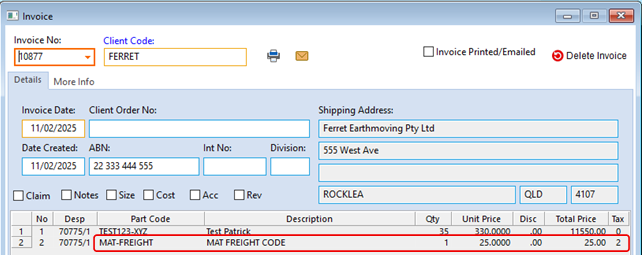
The delivery code and amount has been added to the invoice.
Press <F9> to save.
Opto Software Pty Ltd
Revised: 04/06/2025


